Choose your image
Find a larger source first if one exists. If only a thumbnail remains, use Balanced and compare the original at its native size rather than assuming more pixels means more detail.

Convert a small icon to SVG and see whether the result is useful. Missing letters or details cannot be reliably recovered from a tiny picture.
PNG / JPG / WebP / GIF / BMP · up to 20 MB each
Connecting…
Find a larger source first if one exists. If only a thumbnail remains, use Balanced and compare the original at its native size rather than assuming more pixels means more detail.
Compare the same icon at 64, 128, and 256 pixels. At 64px, text lines and small details blur; at 256px they become clear. Vector output scales, but cannot recover detail the original never had.
Not reliably. Use a PNG export of the favicon; ICO and ICNS files are not accepted. Keep the original raster for pixel-specific artwork.


The same icon at 64×64. The paper plane fold details and corner rounding are visible but pixelated.


The same icon at 128×128. Fold lines are smoother but still show raster edge artifacts.
The same icon at 256×256. Corners, fold lines, and the narrow gap between plane folds are crisp.
Sign in to convert one image at a time and download SVG: up to 3 successful conversions per UTC day and 15 per month. PDF, EPS, DXF and batch ZIP downloads require paid access. Public examples can be tried and downloaded without signing in or using your allowance.
Pricing ↗
Convert an icon into shapes you can resize or recolor. This example uses the green ImageSVG website icon.
Convert an icon to SVG while keeping its transparent background. Check soft edges against both light and dark backgrounds.
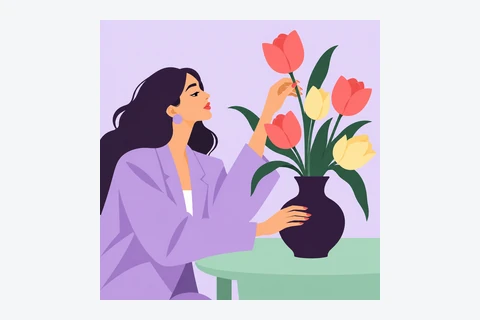
Convert an image, download the SVG and drag it into Figma. You can then edit the shapes and colors. Letters from the image become shapes, not text you can retype.
Choose a clear logo or drawing. Use the original file if you have it, rather than a small screenshot.
Sign in and convert. Zoom in to check letters, corners and small gaps against the original.
Download the SVG. Open it in the app where you plan to use it and check that it looks right.
Yes. Open the SVG in a vector editor such as Figma, Inkscape or Illustrator to change shapes and colors. Letters from the image become shapes: to change a word, type it again in your editor. Some effects may look different between apps.
No automatic tracer can guarantee perfection. This tool suits icons and logos, not photos. Tiny text, touching shapes, shadows and textures may need manual edits. Try a free preview before buying.
No. Your image and SVG result are not uploaded to the cloud during conversion. Account authorization and quota records use only the necessary usage data. Feedback you choose to submit is uploaded separately.
Your images and results stay in this browser for 24 hours. Download them in time, or upload the original again after they expire.