Choose your image
Use a clean source without JPEG blocks or dithered color. Start with Balanced and compare More detail on the same converted image without another credit.

Convert an icon with gradual color changes to SVG. Compare the result carefully: smooth shading works better than grainy textures or photos.
PNG / JPG / WebP / GIF / BMP · up to 20 MB each
Connecting…
Use a clean source without JPEG blocks or dithered color. Start with Balanced and compare More detail on the same converted image without another credit.
Check gradient direction and seams between regions. Some gradients use masks; confirm they render in the editor that will receive the file.
No. Gradients are estimated from pixels. Complex lighting can be approximated, and original gradient stops or layer structure cannot be recovered exactly.
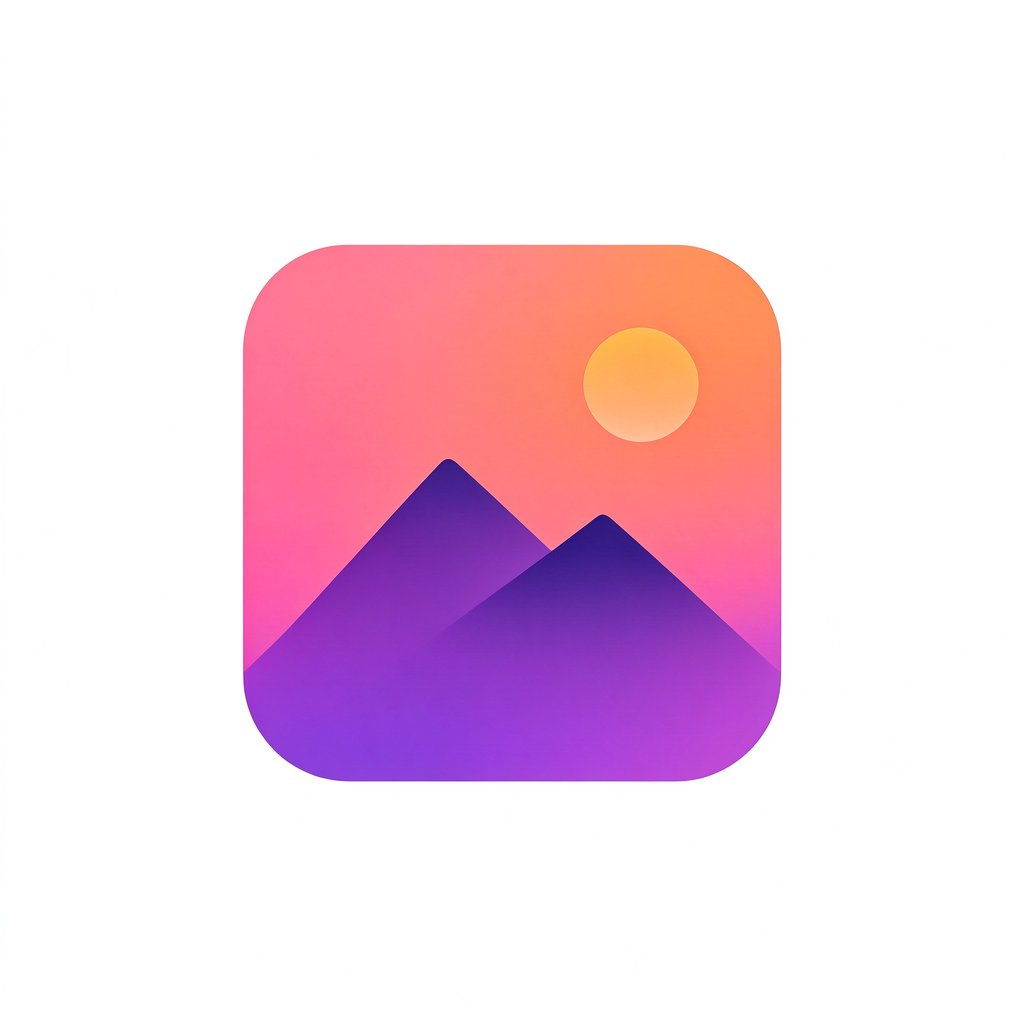
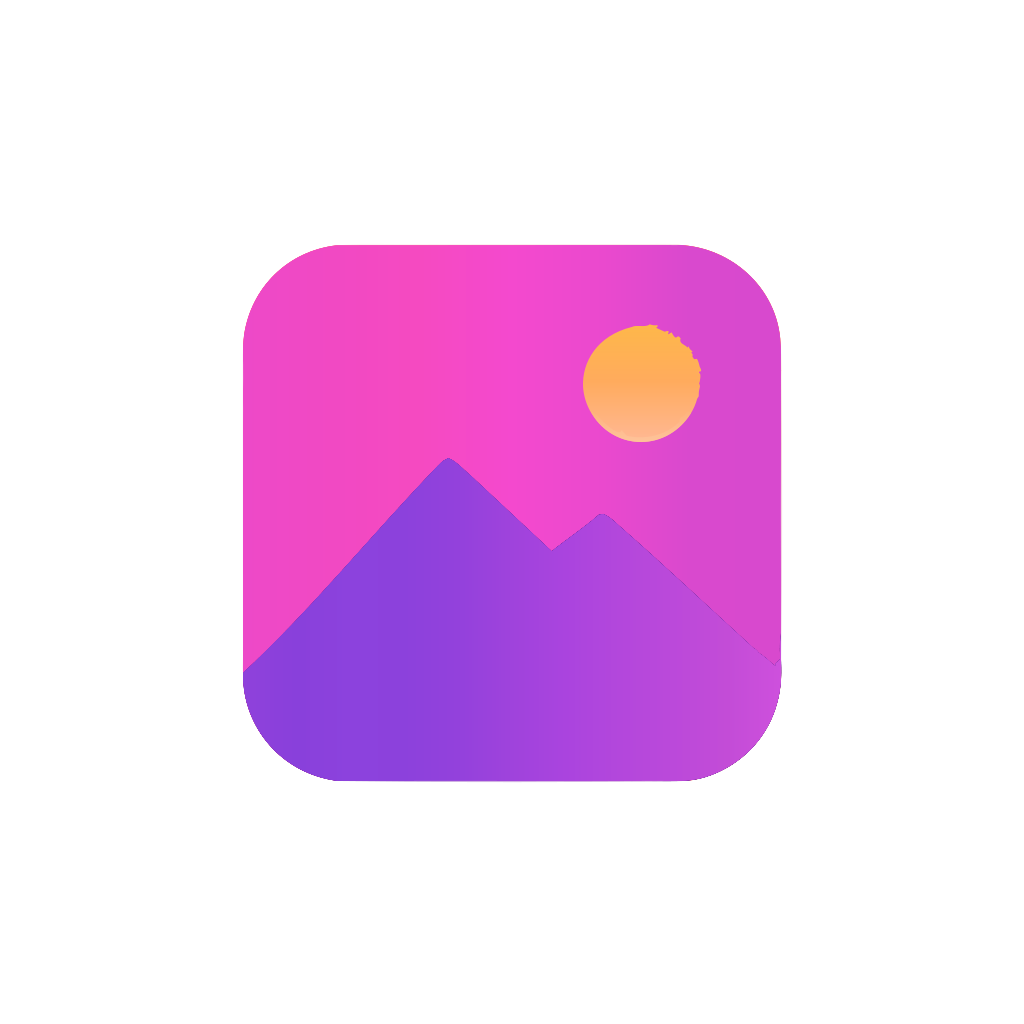
A rounded-square app icon with a smooth coral-to-purple gradient background, dark mountain silhouettes and a small sun. Compare gradient bands and color seams after conversion.
Sign in to convert one image at a time and download SVG: up to 3 successful conversions per UTC day and 15 per month. PDF, EPS, DXF and batch ZIP downloads require paid access. Public examples can be tried and downloaded without signing in or using your allowance.
Pricing ↗
Convert a logo into editable shapes so it stays sharp on signs, posters and large screens. The Morning Fern example focuses on the small COFFEE ROASTERS line.
Convert a one-color logo to SVG so you can resize it or change its color. Check the outer edge and the spaces inside it.
Convert an icon to SVG while keeping its transparent background. Check soft edges against both light and dark backgrounds.
Convert a clear line drawing into editable SVG shapes. The result follows both edges of each drawn line; it does not create a single line through the middle.
Already have an image made with AI? Convert it to SVG, then edit its shapes in a drawing app. This tool converts image files; it does not draw from a text prompt.
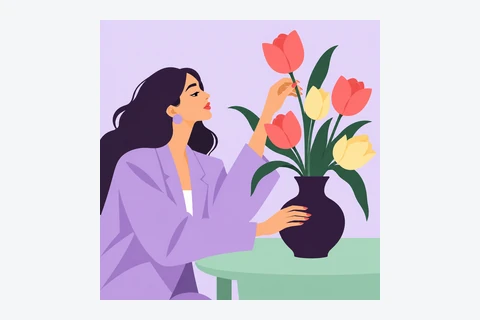
Convert an image, download the SVG and drag it into Figma. You can then edit the shapes and colors. Letters from the image become shapes, not text you can retype.
Use SVG or PDF and verify the gradient in your destination software. This tool’s EPS export uses solid fills and blends transparency against white; DXF contains unfilled contours. A supported format does not guarantee identical rendering in every editor.
Choose a clear logo or drawing. Use the original file if you have it, rather than a small screenshot.
Sign in and convert. Zoom in to check letters, corners and small gaps against the original.
Download the SVG. Open it in the app where you plan to use it and check that it looks right.
Yes. Open the SVG in a vector editor such as Figma, Inkscape or Illustrator to change shapes and colors. Letters from the image become shapes: to change a word, type it again in your editor. Some effects may look different between apps.
No automatic tracer can guarantee perfection. This tool suits icons and logos, not photos. Tiny text, touching shapes, shadows and textures may need manual edits. Try a free preview before buying.
No. Your image and SVG result are not uploaded to the cloud during conversion. Account authorization and quota records use only the necessary usage data. Feedback you choose to submit is uploaded separately.
Your images and results stay in this browser for 24 hours. Download them in time, or upload the original again after they expire.