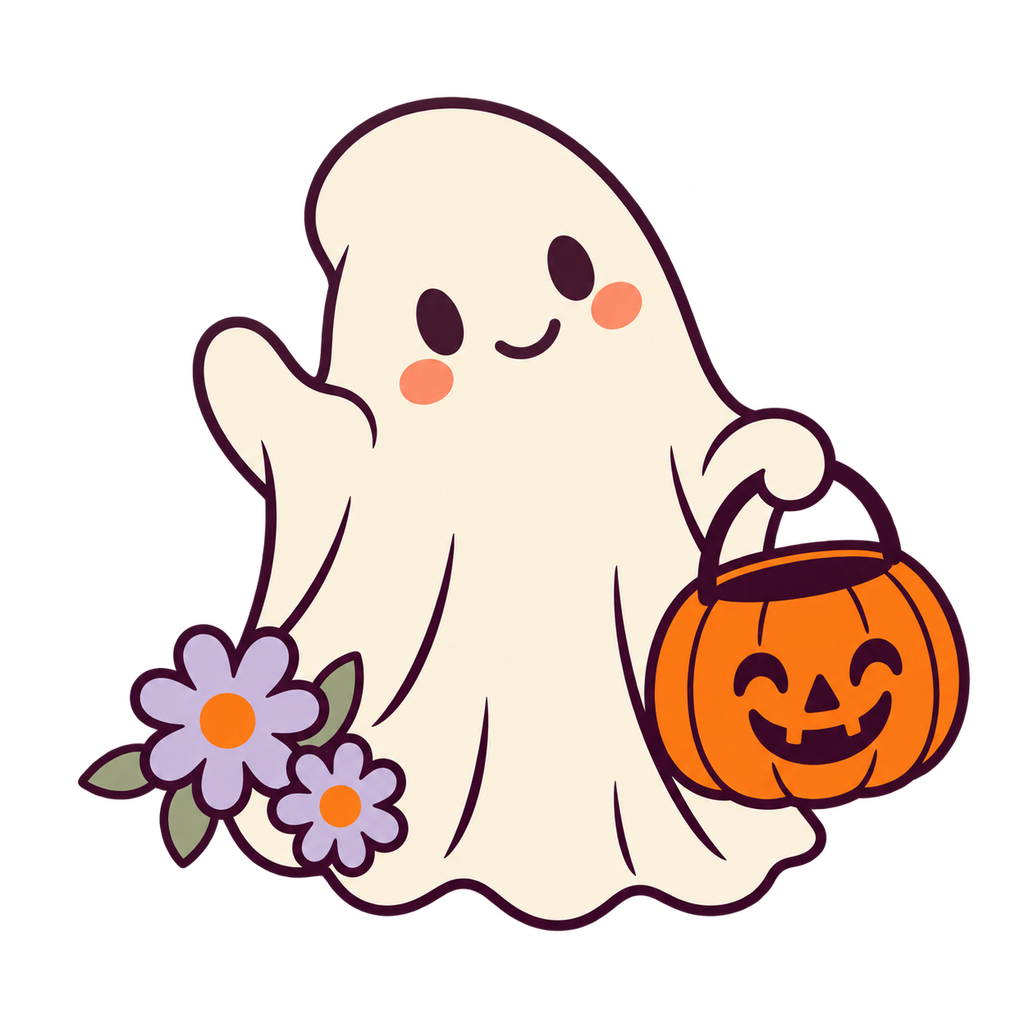
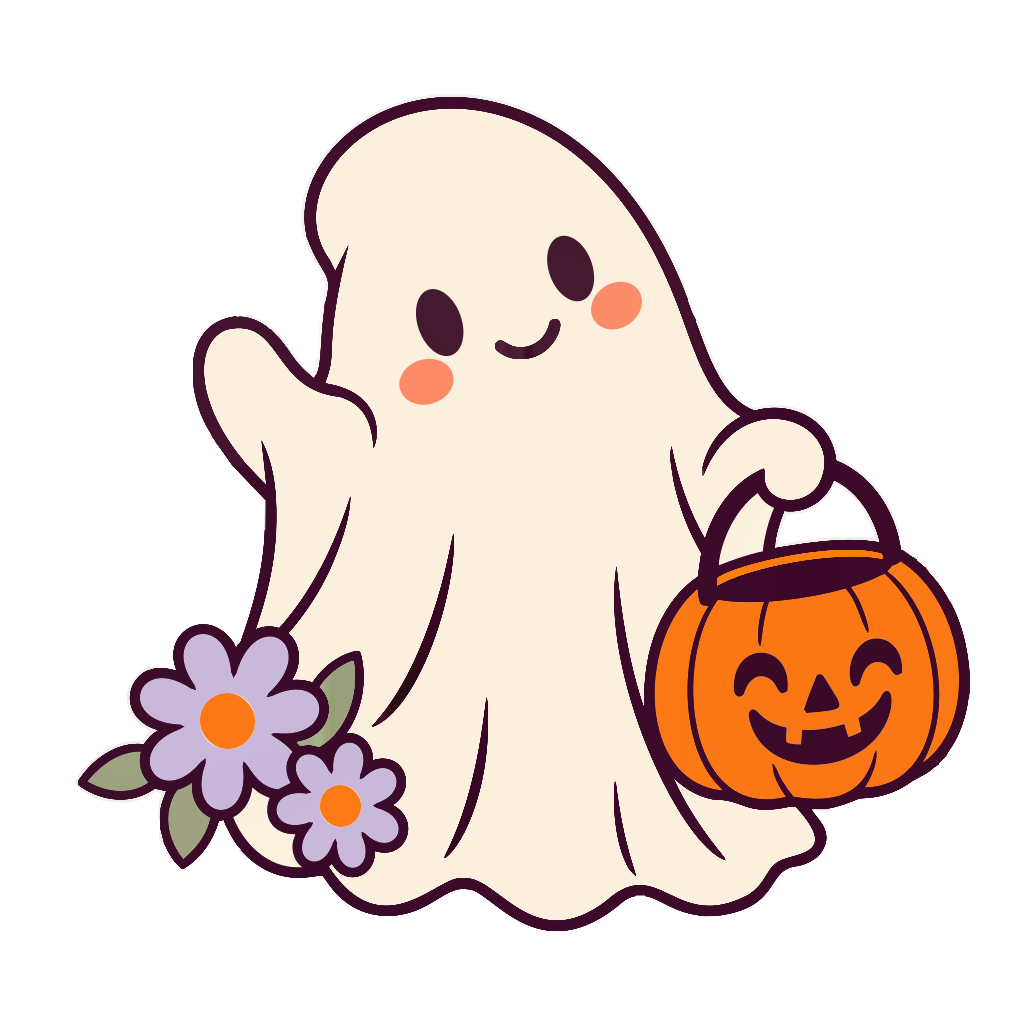

Download this cute ghost SVG, transparent PNG or printable sticker sheet—no account needed. Use the ghost clipart for Halloween window decorations, or turn your own drawing into editable SVG.
Compare the transparent PNG with the actual converted SVG: check the smiling face, pumpkin handle and two lavender flowers.
PNG / JPG / WebP / GIF / BMP · up to 20 MB each
Connecting…
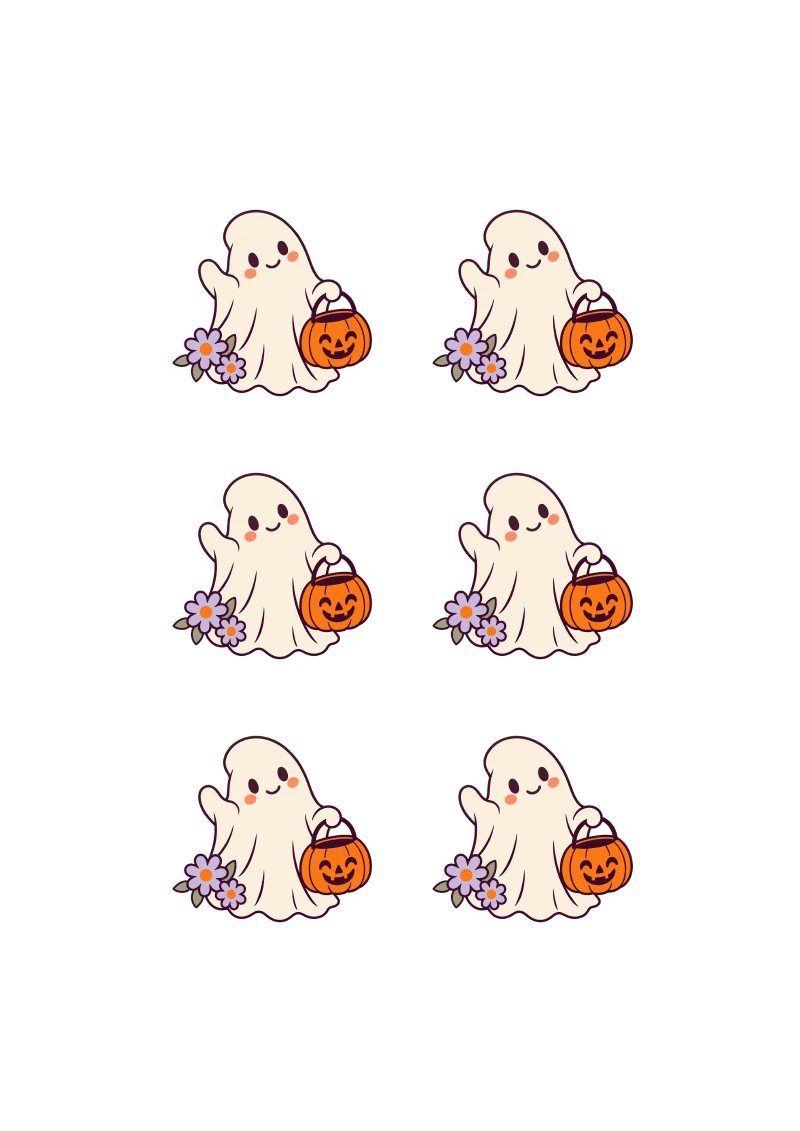
One cute ghost design, with two lavender flowers and a pumpkin candy bucket. Choose the file for your next step.
The PDFs repeat this design six times for hand cutting, without machine registration marks. Free for personal and classroom projects. Use PNG for printing; choose SVG to edit colors and shapes.
Download the A4 or Letter PDF for six ready-arranged stickers. Use the transparent PNG for your own layout. Open the converted SVG in a vector editor if you want to change the flower, ghost or pumpkin colors.
For the PDF, match the paper size and print at 100%. Test on plain paper before using printable vinyl or sticker paper that is compatible with your printer. Ordinary home printers do not print white ink; use white printable material to keep the ghost visible.
Hand-cut the PDF stickers with scissors. For Cricut Print Then Cut, upload the PNG—or import the SVG and Flatten its artwork—then set the size and optional border in Design Space. Print and cut from Design Space in one session; the PDF sheet on this page is for hand cutting, not for the machine’s sensor.
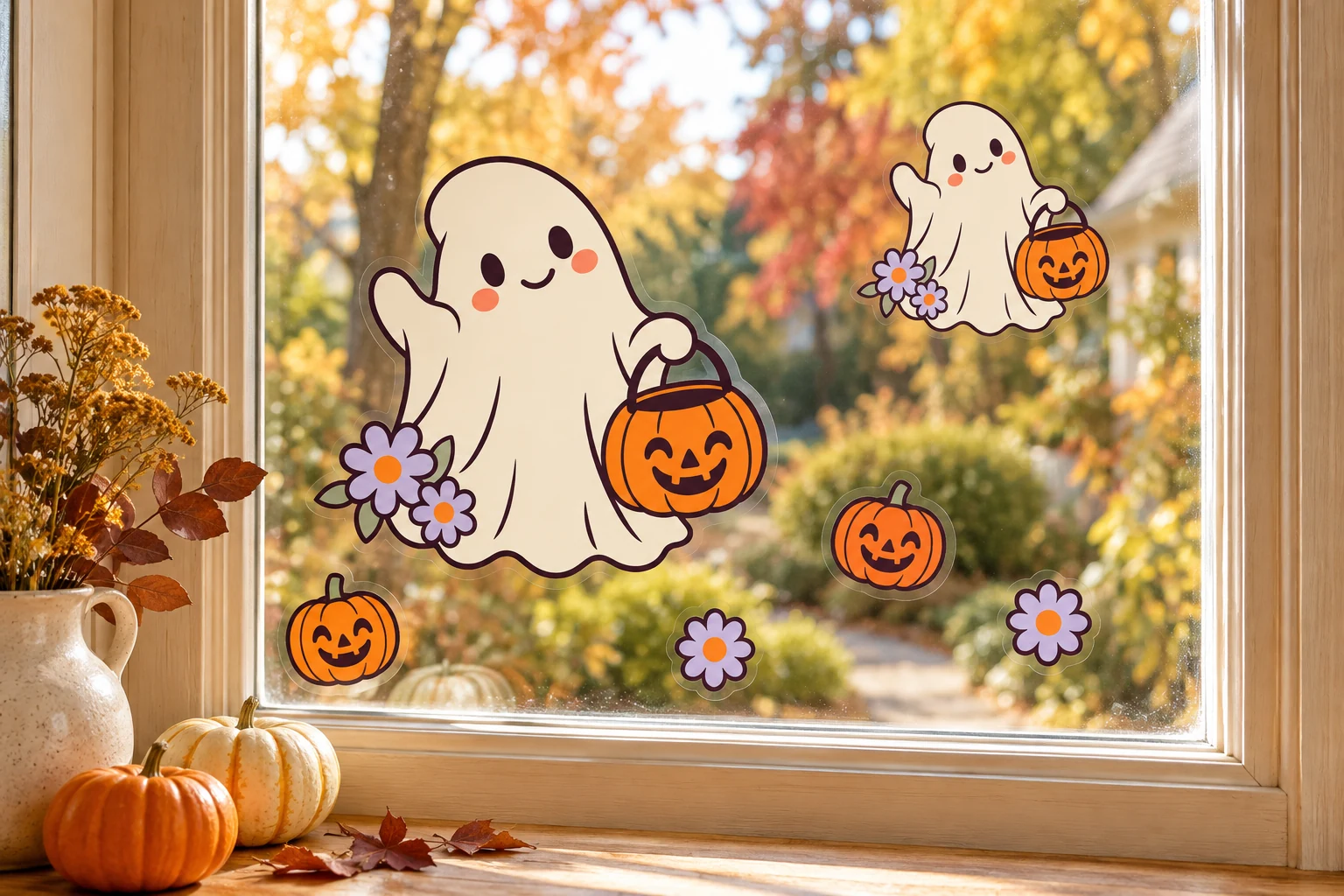
Use removable printable material intended for glass. Clean and dry the window, then arrange small stickers with space between them. Test a corner first; the chosen material determines adhesion and removal.
Leave clear glass between several small stickers rather than covering the pane. White printable vinyl keeps the ghost opaque; transparent film looks different because ordinary printers leave white areas unprinted. Choose removable material made for glass and follow its instructions.
Upload a clear PNG or JPG of artwork you own or have permission to use, sign in and convert it. Download SVG to adjust its shapes and colors in a vector editor. A clear PNG already works for printing; conversion is useful when you want to edit the artwork.
No. Use the transparent PNG or the A4/Letter PDF for ordinary printing. SVG is useful when you want to change shapes, resize the artwork or edit colors. Conversion does not automatically add a sticker border or a single outer cut line.
Yes. The fixed example PNG, SVG and two PDF sheets are free to download without an account. Converting your own image requires sign-in and uses your conversion allowance.
The PDF sheets are for printing and hand cutting. For a compatible Print Then Cut machine, import the PNG or SVG into its software, prepare the printable layer and border there, and use that software’s registration marks.
Cricut instructions: Upload SVG ↗ · Print Then Cut ↗ · More printable stickers →
You can import SVG into Cricut Design Space to resize or edit the artwork. For full-color stickers, use the PNG, or select the imported SVG artwork and use Flatten for Print Then Cut on a compatible machine. This is colored artwork, not a prepared set of vinyl-cutting layers. For layered adhesive vinyl, arrange and check the color layers yourself before a test cut.
Sign in to convert one image at a time and download SVG: up to 3 successful conversions per UTC day and 15 per month. PDF, EPS, DXF and batch ZIP downloads require paid access. Public examples can be tried and downloaded without signing in or using your allowance.
Pricing ↗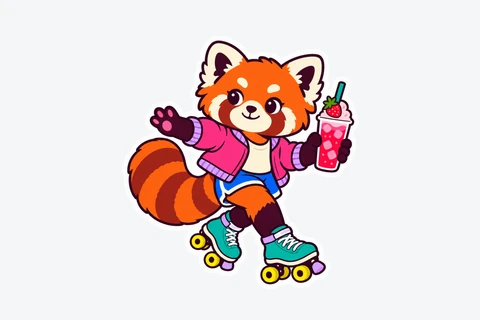
Print a roller-skating red panda for your phone case, notebook or planner. Download the free A4 or Letter sticker sheet, or use PNG and editable SVG to make your own layout.
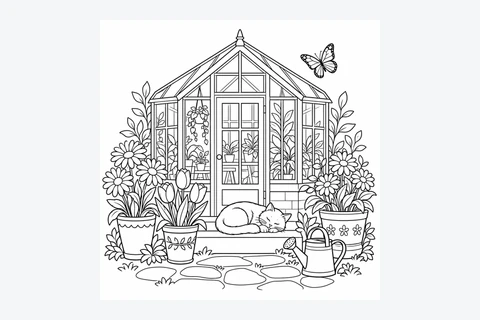
Download a free printable coloring page — a garden with flowers, a greenhouse and a sleeping cat — as PNG, SVG or an A4/Letter PDF, no account needed. Learn how to make your own coloring page from line art, then enlarge or edit it as SVG.
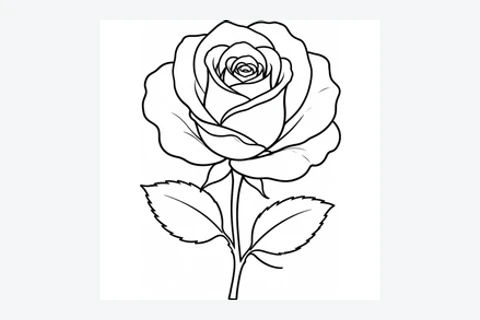
Convert a clear line drawing into editable SVG shapes. The result follows both edges of each drawn line; it does not create a single line through the middle.

Convert a PNG logo or icon to SVG so you can resize it and change its shapes or colors. Transparent areas stay transparent.
Choose a clear logo or drawing. Use the original file if you have it, rather than a small screenshot.
Sign in and convert. Zoom in to check letters, corners and small gaps against the original.
Download the SVG. Open it in the app where you plan to use it and check that it looks right.
Yes. Open the SVG in a vector editor such as Figma, Inkscape or Illustrator to change shapes and colors. Letters from the image become shapes: to change a word, type it again in your editor. Some effects may look different between apps.
No automatic tracer can guarantee perfection. This tool suits icons and logos, not photos. Tiny text, touching shapes, shadows and textures may need manual edits. Try a free preview before buying.
No. Your image and SVG result are not uploaded to the cloud during conversion. Account authorization and quota records use only the necessary usage data. Feedback you choose to submit is uploaded separately.
Your images and results stay in this browser for 24 hours. Download them in time, or upload the original again after they expire.