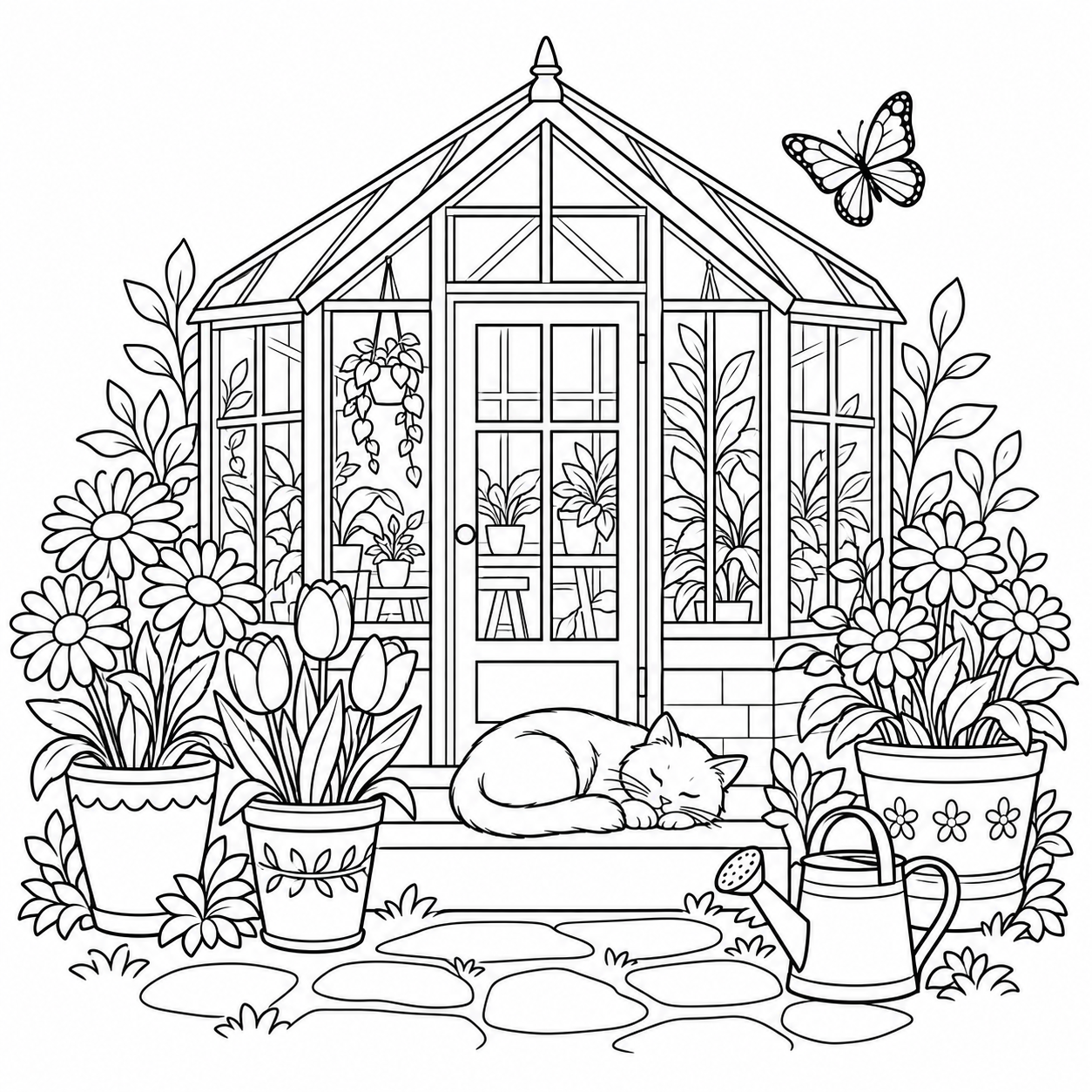
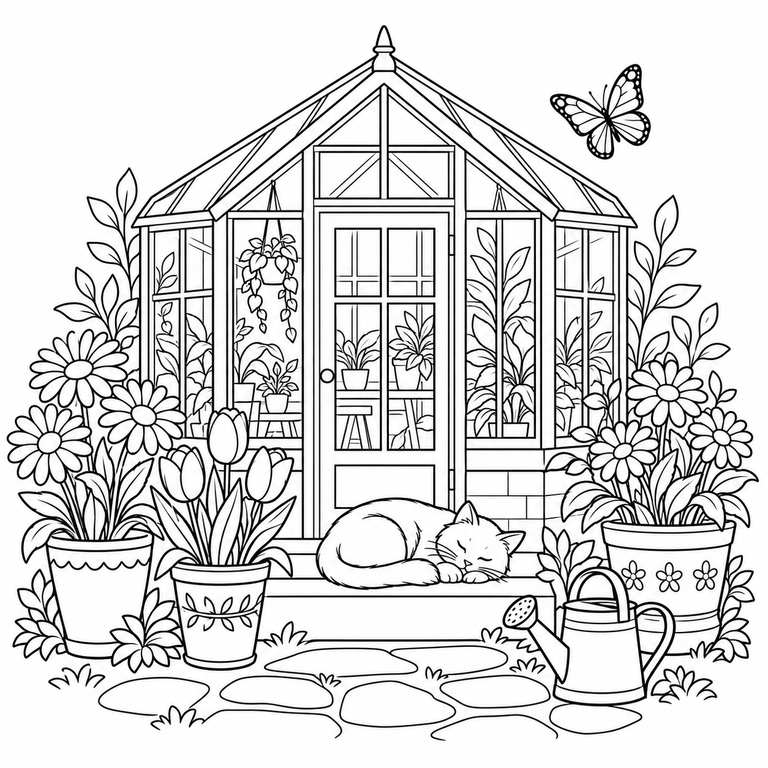
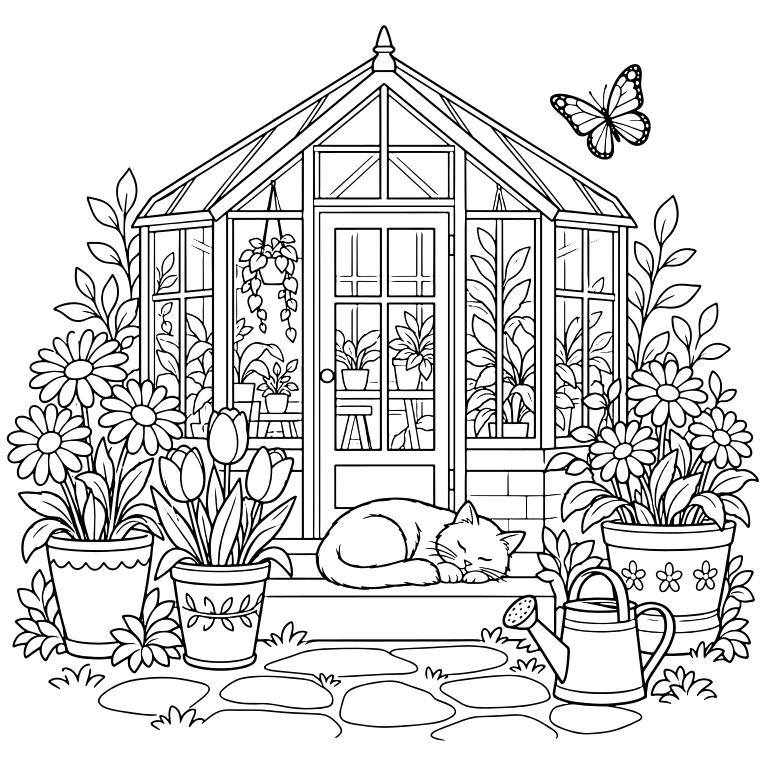
Download a free printable coloring page — a garden with flowers, a greenhouse and a sleeping cat — as PNG, SVG or an A4/Letter PDF, no account needed. Learn how to make your own coloring page from line art, then enlarge or edit it as SVG.
Download and print
These fixed designs are free to download without an account. Print them for personal or classroom use.
Download the free A4 or Letter PDF of this garden coloring page, or take the PNG or editable SVG. The design is centered with white margins.
Choose the same paper size in the print dialog and print at 100%. If your printer clips an edge, use Fit to printable area.
To make your own coloring page, prepare a clean line drawing as described above, sign in, and convert it below. A clear PNG prints directly; SVG lets you enlarge or edit shapes without blurring.
Compare thin lines and small gaps in the result. The SVG turns each ink line into a filled shape rather than a single pen stroke, so outlines stay sharp when printed large.
01
Choose your image
For your own coloring page, start with a clean line drawing, not a photo. Scan it straight in even light, crop away the desk and page edges, then raise contrast in an image editor until the paper looks white and the lines are distinct. Use the full-size scan, not a thumbnail.
02
Inspect before using
Before printing, compare the cat’s face, butterfly and narrow window frames in this example: tracing can join small gaps or change thin lines. Print a small test first; if important details disappear, start from a clearer original or simplify that part in an editor. Check your own line art the same way before printing a full run.
Can I turn a photo into a coloring page here?
Not automatically. This page offers a free coloring page to print and converts existing line art into SVG. To make a coloring page from a photo, first turn the photo into clean black-and-white line art in an image editor — desaturate it, raise contrast and simplify the background — then upload that line art here to enlarge, print or edit it. A clear PNG of line art also prints directly.
Compare the cat’s whiskers, window frames and petals in the converted SVG. White areas stay part of the artwork; small gaps may join and thin lines may change, so print a test page before a full run.
Sign in to convert one image at a time and download SVG: up to 3 successful conversions per UTC day and 15 per month. PDF, EPS, DXF and batch ZIP downloads require paid access. Public examples can be tried and downloaded without signing in or using your allowance.
Choose a clear logo or drawing. Use the original file if you have it, rather than a small screenshot.
02
Preview SVG
Sign in and convert. Zoom in to check letters, corners and small gaps against the original.
03
Download
Download the SVG. Open it in the app where you plan to use it and check that it looks right.
FAQ
Is the SVG really editable?
Yes. Open the SVG in a vector editor such as Figma, Inkscape or Illustrator to change shapes and colors. Letters from the image become shapes: to change a word, type it again in your editor. Some effects may look different between apps.
Will every image look perfect?
No automatic tracer can guarantee perfection. This tool suits icons and logos, not photos. Tiny text, touching shapes, shadows and textures may need manual edits. Try a free preview before buying.
Do you upload my image?
No. Your image and SVG result are not uploaded to the cloud during conversion. Account authorization and quota records use only the necessary usage data. Feedback you choose to submit is uploaded separately.
How long are files kept?
Your images and results stay in this browser for 24 hours. Download them in time, or upload the original again after they expire.