If you need a bigger image file, enlarging it may help. If you need shapes you can edit, convert it to vector. If the letters or drawing are already wrong, those parts need to be repaired or redrawn.
Start with the problem you can see
- The logo is clear but too small. Ask for the original design or a larger export before changing it. Enlarging a PNG adds pixels, but does not guarantee more accurate detail.
- The logo is readable, but you need SVG. Convert it and check the result. This is a good use for vectorization: turning the picture into editable lines and shapes.
- A letter is missing or a shape is distorted. Find a correct reference and repair it. Converting will often copy the error.
What does “upscale” mean?
Upscaling means making an image larger by adding pixels. Some tools smooth the old pixels; AI tools may generate new detail. The result is still an image made of pixels, so it is not a substitute when someone needs editable vector shapes.
A smooth edge can still be the wrong shape
Imagine a tiny circle that is only a few pixels wide. Software has to guess the curve between those pixels. The new edge may be smooth but slightly too wide or uneven. Check the design, not just how sharp it looks.
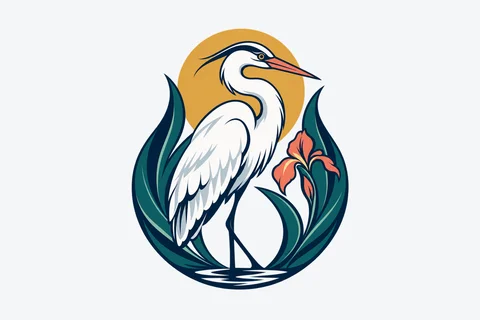
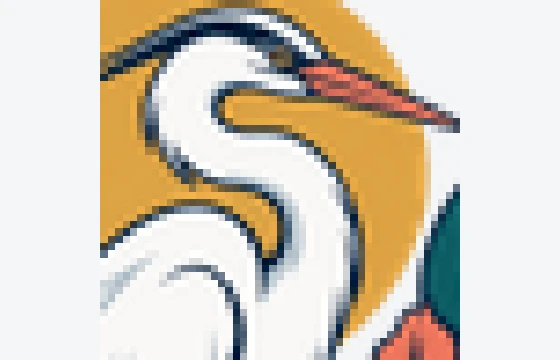
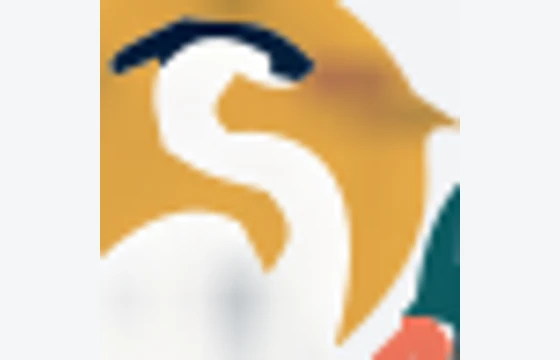
This heron crest was reduced to 128 × 128 pixels before conversion. In this output, the eye disappears and the beak merges into the sun. The thin feather tips also change shape. Use a clearer original instead of this result. Compare them with the 768-pixel example. A smoother edge can still have the wrong shape. This is a tracing example, not a test of an AI upscaler.


For a website and a printed banner
Keep a corrected vector file as the version you edit. Make image copies from it when a website or app needs PNG. Before printing, ask the printer to confirm the size and format. Repeatedly enlarging and converting the same blurry file will not reliably recover the original design.